HomePage
added March 22, 2026
To: All Python Tkinter Tutorials
Must Read- Intro to Python Tkinter Game Dev
This Tutorial
We are going to develop game apps with Python Tkinter, and, since Tkinter is included with the Python code language, we are essentially learning Python. You can code on your Windows desktop computer, or, a Windows laptop. "Tkinter depends on the Tk GUI toolkit, which is built for desktop environments (Windows, macOS, Linux) and uses native windowing systems like X11, Win32, or Cocoa."(1)
Tkinter code also works on Android phones, if you use the Pydroid3 app IDE, which has a free version, suitable for running the Python Tkinter code in our tutorials. Pydroid3 is available at Google Play store.
Pydroid3 has its' own built in editor(white screen), where you can paste code, write code, edit code, save your code, and then RUN your Python Tkinter code, all from the same screen. You can also write or paste code into Pydroid3, and then Save it to a file, by clicking the folder icon at top of the editor.
ACode, also available from Google Play store, is another popular code editor(white screen), that includes an easy to format syntax outline, that helps to properly align your code and indentations while writing Python Tkinter code. You can write code, and paste code into ACode, editor, and Save code to file, and open files you want to edit.
All of these code editors have a free version or are free to use to write and edit Python code.
In addition to its' code editor, and IDE, Pydroid3 also includes an interpreter. And, you'll know your at its' interpreter because the line where you start to type your code reads >>>. The screen color is black. When you open Pydroid3, it goes to the code editor(white screen) automatically, however, if you prefer to code in the interpreter, just select it from the left menu options. Although you can code in both the interpreter and editor in Pydroid3, we mostly code in its' editor(white screen) because we can write, edit, and RUN our code from it by simply selecting the icon triangle built in to the editor.
ACode does not include a Python interpreter(>>>), however, in addition to its' code editor(white screen), it does include a Linux style terminal($)(black screen), where we can run our Python code, usually by writing some code into the terminal that can call the file that we want to RUN. However, it does not include a graphics interface like Pydroid3 does, so all code runs directly in the black screen, no graphics can display. Terminals are best for non graphics game code like Machine learning, where it is more about data, and not graphics.
ACode does have a designated Terminal Folder(Terminal Home), where you can put your files you want to run in the terminal. Just goto the terminal, and write the code, to call any file from the Terminal Home folder.
You can also write new code, or edit code, in its' code editor, and then Save it to the Terminal Home folder, or any other folder you want to create, all with ACode's built in File Manager.
Also, you can code Python directly in an interpreter. While at the terminal, you must first tell it what code language you are going to code. A terminal is a Linux based code environment, where you can write code, build game app apks, run ML and DL scripts and more. You can also use it for simpler things like: to change directories, create new ones, and call Python files, all from the command line.
Linux terminals are very popular with developers, and Interpreters are commonly used for Python coding as well as other code languages. Each are useful depending on what you want to do, but with a Linux environment, you do most of the work yourself.
This is a basic summary of interpreters and terminals.
Similar process on a mobile phone, if we wanted to run a file in Pydroid3, we simply load the file into the editor, and click the triangle icon to RUN the code. In Pydroid3 we can also type or paste, larger amounts of code, and RUN it by clicking the triangle icon within the code editor. It is also easy to edit your code using the Pydroid3 code editor.
If you want to RUN your code from a terminal(black screen), then the process is different than running code in an interpreter. As mentioned, you know your at the terminal code line when you see $, this is a symbol to let you know your coding in a terminal like Linux. Basically, all terminals are Linux, but there can be different versions(features) of it, and differently named.(Ubuntu, Debian, Alpine)
For example, a laptop computer might have a limited version of Linux installed, whereas, an official Linux website, would have a complete version you can download and install. One of the most popular Linux distributions is Ubuntu. Microsoft store has a version of it you can install, however, it does not include all features.
To RUN code from a terminal, you first have to tell it what code language you want to run. So you type, 'Python' into the terminal, at $, then you paste in your Python or Python Tkinter code. And, same as the interpreter, you just click 'enter' on your laptop or desktop computer keyboard to RUN the code command you typed or pasted into the terminal.
You can use the terminal in the Windows Python 3.13 app, once you have it installed on your laptop or computer. Just open Python 3.13, and go to the top of screen, and select the arrow button to open the terminal. To return to the Python code window, just select its' tab from the top of screen.
Note: If you install Python 3.13 from the Microsoft store, the Command Prompt terminal will be added automatically to the Python 3.13 app.
First: the basics:
HOW MANY SPACES SHOULD YOU INDENT
Python doesn’t care whether you use:
✔️ 2 spaces
✔️3 spaces
✔️4 spaces
✔️a tab
It only cares that everything inside the same block uses the same indentation level. This means, if you use 2 spaces, in the first block of code for your indent, then continue that throughout all the code blocks - 2 spaces.
Inside a class:
✔️ All def methods should line up vertically
✔️Only the contents of each method are indented
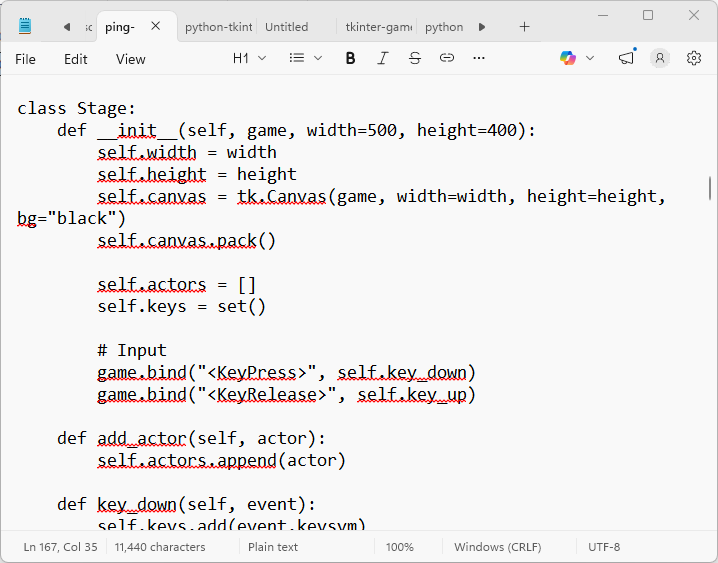
The word def lines up vertically for all blocks of the code. And, words like self, if, can line vertically within a block of code, depending on how many lines are written.
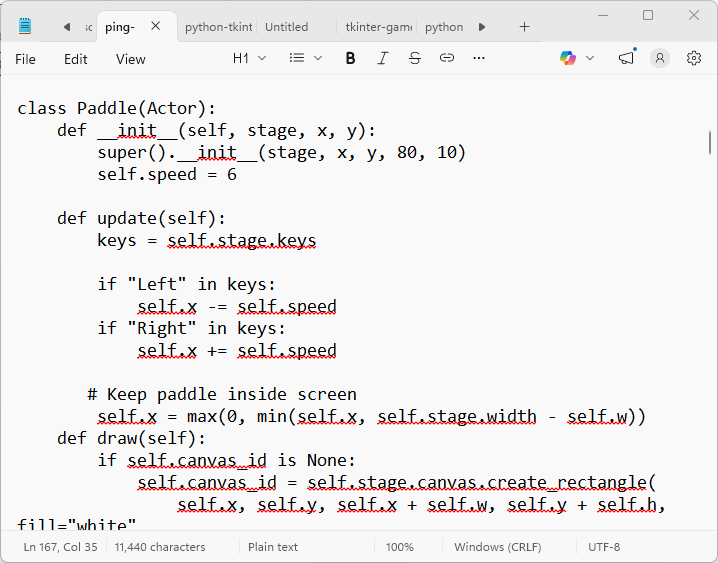
For this codeset, the indentation is five spaces, and you can count; when there is a new indentation, it is exactly 5 spaces. This is how you keep your code consistent, and you can avoid syntax errors. You don't have to use 5 spaces, you can use 2 spaces, or 3 spaces; whichever you choose, keep it consistent as you write out all your code.
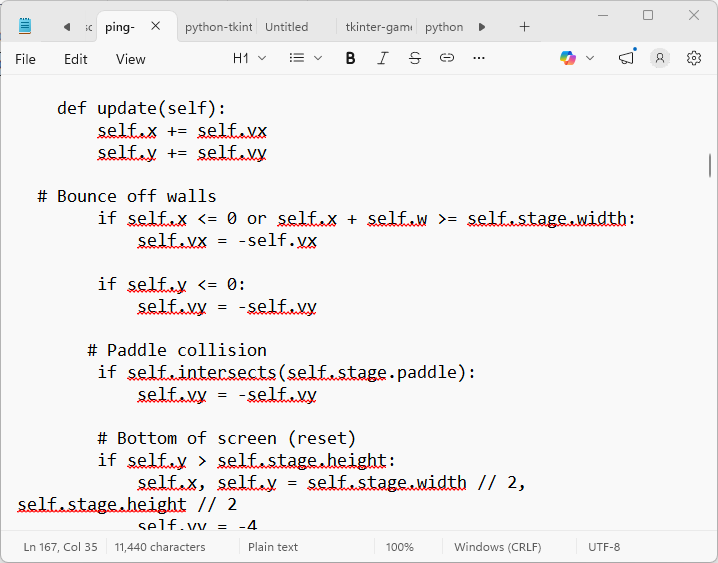
If you get a syntax error, correct it, and then RUN your code again. In the REPL(windows), and in Pydroid3(mobile), you will get 'syntax error' messages, which can help you to find which line the error is at.
Next Tutorial: This Week!
(1), Web Search, Python Tkinter
Like to Scoot? e-Scooter News, Bestsellers
SHARE, FOLLOW
PYTHON - TKINTER GAME DEV
added March 22, 2026
Must Read- Intro to Python Tkinter Game Dev
This Tutorial
Get Coding with Tkinter
We are going to develop game apps with Python Tkinter, and, since Tkinter is included with the Python code language, we are essentially learning Python. You can code on your Windows desktop computer, or, a Windows laptop. "Tkinter depends on the Tk GUI toolkit, which is built for desktop environments (Windows, macOS, Linux) and uses native windowing systems like X11, Win32, or Cocoa."(1)
Tkinter code also works on Android phones, if you use the Pydroid3 app IDE, which has a free version, suitable for running the Python Tkinter code in our tutorials. Pydroid3 is available at Google Play store.
Install Python App
To code on your desktop or laptop, you can install the Python 3.13 app. This app is available from the Microsoft App Store, just search for Python, and select Python 3.13 app. It is a free app and it installs easily on your windows computer.Install Editors: Notepad, Pydroid3, ACode
While coding on your laptop or desktop computer, the Windows code editor, Notepad, is sufficient to write and save your code files as, example: mygame.py, .py file type.Pydroid3 has its' own built in editor(white screen), where you can paste code, write code, edit code, save your code, and then RUN your Python Tkinter code, all from the same screen. You can also write or paste code into Pydroid3, and then Save it to a file, by clicking the folder icon at top of the editor.
ACode, also available from Google Play store, is another popular code editor(white screen), that includes an easy to format syntax outline, that helps to properly align your code and indentations while writing Python Tkinter code. You can write code, and paste code into ACode, editor, and Save code to file, and open files you want to edit.
All of these code editors have a free version or are free to use to write and edit Python code.
Python Interpreters: Python 3.13(Windows), Pydroid3(Mobile)
Python is a code language that is read line by line by an interpreter. Python 3.13(the windows app) is an interpreter, known as REPL, which means, Read, Evaluate, Print, Loop. You know when your using an interpreter because the line where you start to code reads >>>. Python 3.13 interpreter window screen is black, which is typical of interpreters and command terminals, like a Linux command prompt.In addition to its' code editor, and IDE, Pydroid3 also includes an interpreter. And, you'll know your at its' interpreter because the line where you start to type your code reads >>>. The screen color is black. When you open Pydroid3, it goes to the code editor(white screen) automatically, however, if you prefer to code in the interpreter, just select it from the left menu options. Although you can code in both the interpreter and editor in Pydroid3, we mostly code in its' editor(white screen) because we can write, edit, and RUN our code from it by simply selecting the icon triangle built in to the editor.
ACode does not include a Python interpreter(>>>), however, in addition to its' code editor(white screen), it does include a Linux style terminal($)(black screen), where we can run our Python code, usually by writing some code into the terminal that can call the file that we want to RUN. However, it does not include a graphics interface like Pydroid3 does, so all code runs directly in the black screen, no graphics can display. Terminals are best for non graphics game code like Machine learning, where it is more about data, and not graphics.
ACode does have a designated Terminal Folder(Terminal Home), where you can put your files you want to run in the terminal. Just goto the terminal, and write the code, to call any file from the Terminal Home folder.
You can also write new code, or edit code, in its' code editor, and then Save it to the Terminal Home folder, or any other folder you want to create, all with ACode's built in File Manager.
Interpreter vs Terminal(Command Prompt, Power Shell)
It is easy to confuse an interpreter with a terminal, because at first glance, they appear very similar. Most often they are black screens, and have no menu options like a regular code editor. But how you can differentiate them is by their code line. An interpreter has the >>> at the code start line(the prompt), while a terminal has the $ at its prompt line.Also, you can code Python directly in an interpreter. While at the terminal, you must first tell it what code language you are going to code. A terminal is a Linux based code environment, where you can write code, build game app apks, run ML and DL scripts and more. You can also use it for simpler things like: to change directories, create new ones, and call Python files, all from the command line.
Linux terminals are very popular with developers, and Interpreters are commonly used for Python coding as well as other code languages. Each are useful depending on what you want to do, but with a Linux environment, you do most of the work yourself.
This is a basic summary of interpreters and terminals.
How To RUN Python Tkinter Code and Files
We can write/paste our code in an editor, or directly into an interpreter by pasting the code directly or calling the code's file from a folder on your phone or computer. Usually in an interpreter, we paste small snippets of code, like to test a section of a larger codeset. We can also run an entire game in the interpreter, for this, we usually just call the file by including its' file location, be it on a laptop or a mobile phone. Once we include its' location/path into our code, we only have to click enter on our Windows keyboard, and then the interpreter RUNS the code.Similar process on a mobile phone, if we wanted to run a file in Pydroid3, we simply load the file into the editor, and click the triangle icon to RUN the code. In Pydroid3 we can also type or paste, larger amounts of code, and RUN it by clicking the triangle icon within the code editor. It is also easy to edit your code using the Pydroid3 code editor.
Saving Python Tkinter Code
Code written for Python Tkinter is saved as, example: mygame.py. Most game code is saved to one file. If you add any assets to your game like images, sounds, then you create a folder for your game, and, include the mygame.py, and the image, sound files. When you run your game code, the interpreter only requires the py file name; it knows where to find the game assets, so important to place the py file and images, sounds, into the same folder. When using an interpreter to run your code, the files can be saved to any folder, and you can create new folders for each game you develop. The interpreter only needs to know where the file is.What Is A Terminal Command Prompt
A terminal - aka, command prompt, is another method to run and test your code. Terminals are used more for testing, and running code from files, than pasting it directly into the terminal.If you want to RUN your code from a terminal(black screen), then the process is different than running code in an interpreter. As mentioned, you know your at the terminal code line when you see $, this is a symbol to let you know your coding in a terminal like Linux. Basically, all terminals are Linux, but there can be different versions(features) of it, and differently named.(Ubuntu, Debian, Alpine)
For example, a laptop computer might have a limited version of Linux installed, whereas, an official Linux website, would have a complete version you can download and install. One of the most popular Linux distributions is Ubuntu. Microsoft store has a version of it you can install, however, it does not include all features.
To RUN code from a terminal, you first have to tell it what code language you want to run. So you type, 'Python' into the terminal, at $, then you paste in your Python or Python Tkinter code. And, same as the interpreter, you just click 'enter' on your laptop or desktop computer keyboard to RUN the code command you typed or pasted into the terminal.
You can use the terminal in the Windows Python 3.13 app, once you have it installed on your laptop or computer. Just open Python 3.13, and go to the top of screen, and select the arrow button to open the terminal. To return to the Python code window, just select its' tab from the top of screen.
Note: If you install Python 3.13 from the Microsoft store, the Command Prompt terminal will be added automatically to the Python 3.13 app.
How To Write and Format Python Tkinter Code
Python and Python Tkinter are similar because they are Python code language. Python like every code language, has its' own particular set of syntax rules. For Python, it's all about indentation. If just one letter or word is not lined up properly, then you will get a syntax error. Good to Know how to avoid syntax errors, so with some images, we are going to discuss the basics of avoiding syntax errors in Python Tkinter.First: the basics:
HOW MANY SPACES SHOULD YOU INDENT
Python doesn’t care whether you use:
✔️ 2 spaces
✔️3 spaces
✔️4 spaces
✔️a tab
It only cares that everything inside the same block uses the same indentation level. This means, if you use 2 spaces, in the first block of code for your indent, then continue that throughout all the code blocks - 2 spaces.
Inside a class:
✔️ All def methods should line up vertically
✔️Only the contents of each method are indented
Syntax Errors
Here we can see code examples with proper code syntax. You can see that certain words in code line with each other vertically. This gives you a good read on how to code with Python, so you can avoid syntax errors.
The word def lines up vertically for all blocks of the code. And, words like self, if, can line vertically within a block of code, depending on how many lines are written.
For this codeset, the indentation is five spaces, and you can count; when there is a new indentation, it is exactly 5 spaces. This is how you keep your code consistent, and you can avoid syntax errors. You don't have to use 5 spaces, you can use 2 spaces, or 3 spaces; whichever you choose, keep it consistent as you write out all your code.
If you get a syntax error, correct it, and then RUN your code again. In the REPL(windows), and in Pydroid3(mobile), you will get 'syntax error' messages, which can help you to find which line the error is at.
Next Tutorial: This Week!
(1), Web Search, Python Tkinter
Like to Scoot? e-Scooter News, Bestsellers
SHARE, FOLLOW
2026 gamedev.zeootr.com(formerly androidappcoding.com)
All Rights Reserved