Python Tkinter Game Tutorials
This Tutorial:
Install Python 3.13, Write a Simple Action Codeset
Our Python Tkinter tutorials will first start with the basics of learning to code with Tkinter. That means we will code small simple scripts to learn functions and methods in Tkinter. And, also of importance, we'll discuss proper syntax when writing our code. As we complete our tutorials, we can gradually incorporate, more complex code; to include things like - multi players, multi player actions, multi game sprites, layers, tiles, backgrounds, sounds, scorekeepers, game menus, game controls, and, health bars.
All code for each tutorial is at the Example Code section on the tutorial's page. Just copy, then paste the code into your own code editor, and save it as noted. And, save the game image also. The image name must match what is already in the code, so name it the same.
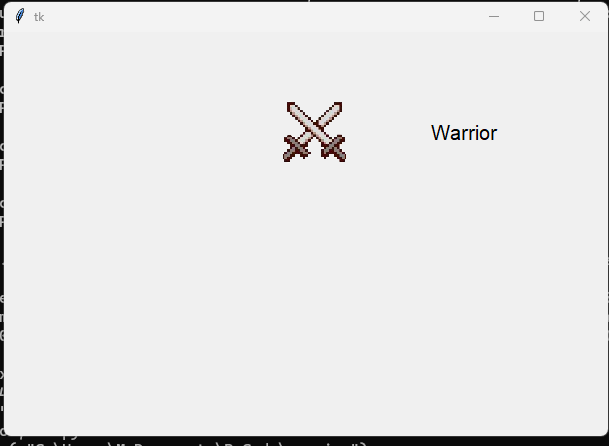
At Game Shot, you can see a image of the game's start screen, either from a laptop shot(Python 3.13 REPL), or Androd phone shot(Pydroid3), or both. Additional image shots can be seen in the 'Code for this Tutorial' section.
FYI: In addition to running your code in Python 3.13 on your Windows computer, the code from this game dev tutorial can be RUN with Pydroid3, a mobile IDE and Python interpreter, and also ACode's built in Linux terminal. Pydroid3 and ACode also have built in code editors you can use to write, edit, and save Python Tkinter code. These are both available to download and install on your Android phone from Google Play store.
This tutorial's code is at our Example Code section on this page, so you can copy it from the Example Code section, and into your Notepad(or any editor) and save it as 'tkinter-action-code.py'. Then just copy from the editor, and paste the codeset into the Python 3.13 interpreter, at >>>.
Or, if you prefer, you can call the code; for that, you just include the call code, for the py file you want to RUN, and paste that into the interpreter. The interpreter code line starts at the >>>.
Once you paste in the entire code with copy and paste, or, just the code to call the file from your windows computer files, you use the enter key on your windows keyboard. You will enter it twice, so two taps on the enter button. Then the game windows will populate and play the game. The game window will stay on the screen, but the code only runs once, unless you run it again. TO RUN the code a second time, you can either: select the arrow up button on your keyboard, and then select the enter key. Or, you can paste the code again into the REPL, and then select enter twice to run it.
Tkinter Game Shot from Laptop
For smaller codesets,(fewer lines), we can paste directly into the REPL, however for larger codesets, it is easier just to write the code, save the file as a py file, and then call that file in the REPL. Common in the REPL, you can test small sections of a larger game. Since Python code language reads and interprets the code you write line by line, it is easy to start a small game and then add to it as you go. So, unlike some code languages, like Java/XML where the code must be compiled all together, Python can interpret code line by line.
Comments - You can add comments to your code, to make it more readable, and allows you to notate as you code. The # symbol is used for this mostly. Short lines are recommended for comments using the # symbol. You can see comments in our code for this tutorial at the Example Code section.
Create new Folders - as you write code for each tkinter game, you can create a folder for each game's codeset. This is a good way to keep your py file and game images/sprites together also; because in Python, the images must be kept in the same folder as the py file. If however, you don't have any images for a particular game, then you don't really have to create a new folder for the games' code. However, in practice, it is a good idea to keep your game code and games organized.
The Code ⚔️
First in this game's code we have:
import tkinter as tk
mygame= tk.Tk()
canvas = tk.Canvas(mygame, width=600, height=400)
canvas.pack()
The import is necessary as it is importing Tkinter module/library for us. Without the import included, we cannot code Tkinter code for our tkinter game.
Next, is the tk. Canvas, which is the window for the game, its' size with width of 600, and height of 400. Depending on your device, you can change these values as you like. And, canvas.pack(), is the widget, and the layout, that puts it all together. Tkinter has several layout systems, and .pack() is one of them. Since we are coding a simple style game this one if good to use, since we only have one widget(the canvas) and our layout isn't complex. The other layouts are grid(), and place(), As we continue our Tkinter tutorials, we will learn how to implement those layouts also.
The next block of code is:
This code is about the image we are adding.
sword_img = tk.PhotoImage(file="sword.png")
warrior= canvas.create_image(-118,100, image= sword_img, anchor = "e")
text = canvas.create_text(0, 100, text="Warrior", font=("Arial", 15))
Our game image is sword.png, so, to add it to our game, we create an object for it, and called it sword_img, and then we attach the object we created to the photo function in Tkinter called tk.PhotoImage. Then we can position the image on the canvas(game window), by giving it number values/coordinates. is where on the canvas we want to put the anchor point, In this case we want it anchored east(e), or right side of the image.
For values - aka coordinates:
What they mean:
Coordinates: (-118, 100) This means:
X = -118 (to the left side of the screen)
Y = 100 (100 pixels vertically positioned)
Action begins on the left of the screen, moves to the right.
We also create our text for the screen 'Warrior', and position that with 0,100; and using the Arial font, with font size 15.
Our last block of code is:
This code is about moving the image and text across the game screen, and, starting the game.
def move():
if not canvas.winfo_exists():
return
canvas.move(warrior, 5, 0)
canvas.move(text,5,0)
mygame.after(50, move)
move()
mygame.mainloop()
In Python, we use def to create and define a function object and give it a name. You will create many objects for your games.
def move():
canvas.move(warrior, 5, 0)
canvas.move(text,5,0)
So, we write code to move the image and the text.
5 pixels every 50 ms
which is 20 times per second (because 1000 ms / 50 ms = 20)
Timing in Tkinter is in milliseconds.
1 second = 1000 milliseconds, = 1000 ms
So your animation updates 20 times per second. Then multiply: 5 pixels per frame × 20 frames per second = 100 pixels per seconds.
Also in the move() function you have:
mygame.after(50, move)
This says to Tkinter:
“In 50 milliseconds, call this move() function again
Note: The larger the number (100,move), the slower it moves
⏱️ So, we can say that this line,
mygame.after(50, move)
controls the timing in the game: Also known as a game step.
And, the code:
🪟 mygame.mainloop()
This code starts Tkinter’s event loop.
This is the line that actually launches the game window and keeps it alive:
When called, Tkinter begins:
listening for keyboard input
listening for mouse clicks
updating the screen
running scheduled callbacks (after())
keeping the window responsive
Without mygame.mainloop() your game window would display but do nothing.
And, this code -
move(),
this starts your animation game loop, and Runs the move() code once.
The warrior moves 5 pixels immediately.
TO NOTE; 🎮 In game‑engine terms:
move() is your update() function
after(50, move) is your frame timer
mainloop() is your game loop
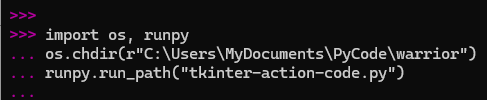
To RUN our game code, we can paste the code directly into the Python 3.13- REPL at the >>> prompt, or we can call the file in code. For test code, or small games and codesets, pasting is fine, however, this is not recommended for larger amounts of code. Instead, what most game developers do is call the file.
Calling a file requires only a few lines of code, and you can better organize your game code files and folders. Once you run a games' code the first time; just keep all your tkinter game codes in the same folder(directory) and create sub folders for the new game code you write.
You already have the ready made template(call code) from the first game you called, now you can (copy/paste it); you just have to change the file name, and folder name, for each new game you want to call in the REPL >>>.
Note: Game files, and game images, sounds and the like, all go into the same folder. There a few ways to call the code from a directory/folder.
We Can Use Any Of These Methods to Call Our File
Use raw strings: r"C:\path\to\file.py"
Or double backslashes: "C:\\path\\to\\file.py"
Or use forward slashes: "C:/path/to/file.py"
and,
If you are already in the Python REPL (>>> prompt):
Just to explain each of these.
Raw strings method 'r"C"\, uses r and with the back slashes, but if you use C: directly,"C:\\ you must use double backslashes, the reason being that calling a file from C:\ directly means a command in Python, but not the command we want, so that's why we use double backslashes if you want to call your file with the C:\. And, forward slashes are acceptable also.
For this tutorial, we will use the raw strings method to call our file.
r"C:\path\to\file.py"
For Python to call and execute your game script, your file must have certain permissions.
Python 3.13- REPL, requires your file have 'read', and 'read and execute' for its' permissions . So, just right click on the file name,'tkinter-action-code.py', and at Properties, Select to change or edit Permissions, then just toggle on for read, read execute. These are probably already checked, but if not, that's how to change their permissions.
So, to call my own file in the REPL>>>, I used this next code to call my file 'tkinter-action-code.py'. I already had the folder C, and Users, on my laptop, I just created MyDocuments\PyCode\warrior folders, and saved my code file in that folder with the name warrior. My image sword.png is also in that folder.
My game file is at: \Users\MyDocuments\PyCode\warrior\tkinter-action-code.py
To get that file path into my call code I write the code like this:
First, we must change directory into the Users\MyDocuments\Pycode\warrior; we do that with 'os.chdir'. Also we want to use raw string method to get the file so we add the '(r"C:\' the r, at the beginning of our code string. Then, we use 'runpy.run_path' to get to our file 'tkinter-action-code.py'. Here is the code we paste into the REPL >>>.
Just change the folder names to those on your computer/laptop where the file is.
import os, runpy
#on my laptop it is here
os.chdir(r"C:\Users\MyDocuments\PyCode\warrior")
runpy.run_path("tkinter-action-code.py")
#and, this works, without linuxdump
import os, runpy
os.chdir(r"C:\Users\MyDocuments\PyCode\warrior")
_ = runpy.run_path("tkinter-action-code.py")
In the REPL >>>, we can execute our game code by calling the game code file. We can also paste our code into the REPL>>>, good for small amounts of code, but more tedious if you have to Run your code alot for testing purposes, especially if it is a large codeset.
Pydroid3
This game code can also be executed in Pydroid3, on your Android phone. It works the same on as in REPL, once you click its icon to RUN the code, the game windows displays and you see the action. Pydroid can be installed from Google Play store. To run the code you can open the file into Pydroids' code editor, or paste the code into the editor. Then just click the run icon in the code editor to RUN the code. You can write code directly in the code editor with Pydroid3 and run it directly. A game window populates once the code runs. You can edit the code in the editor and click the run icon to run code agin, after edits. Pydroid3 is user friendly. You can load any Python Tkinter type file (py) and run it in its' code editor. Pydroid is a free app but does display ads.
Terminal Coding - Python 3.13(Windows) - ACode(mobile)
This game code can also be executed in a terminal, like a Linux terminal. There is a terminal included with Python 3.13 REPL, at top of screen, just click the arrow icon. To return to REPL from the terminal, just select the tab window, at top of screen.
Coding in a terminal is somewhat similar to coding in the REPL. One distinction is that in a terminal, you first have to tell it what code language you want to code like - Python. You can build and develop games in a terminal, including packaging them. They are also popular for Machine Learning - ML.
And, you can run and execute your game script at ACode, also a mobile app, which includes a code editor, with a terminal. The terminal has a built in file manager, where you can save and get your files from. This is useful if you use their terminal. Like the terminal on your Windows computer, included with Python 3.13 REPL, it can run Python Tkinter code from a file call. As we continue our Python Tkinter tutorials, we are going to learn more about working in a terminal environment.
Install Python 3.13, Write a Simple Action Codeset
- Save to File; Run Code in Python 3.13 REPL
Our Python Tkinter tutorials will first start with the basics of learning to code with Tkinter. That means we will code small simple scripts to learn functions and methods in Tkinter. And, also of importance, we'll discuss proper syntax when writing our code. As we complete our tutorials, we can gradually incorporate, more complex code; to include things like - multi players, multi player actions, multi game sprites, layers, tiles, backgrounds, sounds, scorekeepers, game menus, game controls, and, health bars. All code for each tutorial is at the Example Code section on the tutorial's page. Just copy, then paste the code into your own code editor, and save it as noted. And, save the game image also. The image name must match what is already in the code, so name it the same.
At Game Shot, you can see a image of the game's start screen, either from a laptop shot(Python 3.13 REPL), or Androd phone shot(Pydroid3), or both. Additional image shots can be seen in the 'Code for this Tutorial' section.
FYI: In addition to running your code in Python 3.13 on your Windows computer, the code from this game dev tutorial can be RUN with Pydroid3, a mobile IDE and Python interpreter, and also ACode's built in Linux terminal. Pydroid3 and ACode also have built in code editors you can use to write, edit, and save Python Tkinter code. These are both available to download and install on your Android phone from Google Play store.
Coding Tkinter: How to Create the Game File
To write our game code file, we are going to use Notepad, which is available to use on a Windows laptop or computer. If it isn't already available as an app on your computer, you can download it from the Microsoft store. From your Start menu on your computer just click the icon for Microsoft store. From there, you can browse or do a search for the app you want. Notepad is a basic code editor, and we can paste or write our Python Tkinter code into the editor, and save the file as, example: a mygame.py, py file type. If you prefer to use another coding editor that is fine also.Install Python 3.13
Once you install the Python 3.13 interpreter(aka -REPL) app from the Windows Microsoft store, you are ready to start coding. To find the Python 3.13 app you just installed, goto Windows Start menu, and select it from the installed apps shown. The icon reads Python 3.13, this is the app you want to open. Once open, you'll see a black screen, with the start to code line, at >>>. This is where you put your cursor to paste or start writing your code.This tutorial's code is at our Example Code section on this page, so you can copy it from the Example Code section, and into your Notepad(or any editor) and save it as 'tkinter-action-code.py'. Then just copy from the editor, and paste the codeset into the Python 3.13 interpreter, at >>>.
Or, if you prefer, you can call the code; for that, you just include the call code, for the py file you want to RUN, and paste that into the interpreter. The interpreter code line starts at the >>>.
Once you paste in the entire code with copy and paste, or, just the code to call the file from your windows computer files, you use the enter key on your windows keyboard. You will enter it twice, so two taps on the enter button. Then the game windows will populate and play the game. The game window will stay on the screen, but the code only runs once, unless you run it again. TO RUN the code a second time, you can either: select the arrow up button on your keyboard, and then select the enter key. Or, you can paste the code again into the REPL, and then select enter twice to run it.
Tkinter Game Shot from Laptop
Code For This Tutorial
Coding Tkinter: Text - 'Warrior", and Image- Sword; Text and Sword Move Across the Game ScreenFor smaller codesets,(fewer lines), we can paste directly into the REPL, however for larger codesets, it is easier just to write the code, save the file as a py file, and then call that file in the REPL. Common in the REPL, you can test small sections of a larger game. Since Python code language reads and interprets the code you write line by line, it is easy to start a small game and then add to it as you go. So, unlike some code languages, like Java/XML where the code must be compiled all together, Python can interpret code line by line.
Comments - You can add comments to your code, to make it more readable, and allows you to notate as you code. The # symbol is used for this mostly. Short lines are recommended for comments using the # symbol. You can see comments in our code for this tutorial at the Example Code section.
Create new Folders - as you write code for each tkinter game, you can create a folder for each game's codeset. This is a good way to keep your py file and game images/sprites together also; because in Python, the images must be kept in the same folder as the py file. If however, you don't have any images for a particular game, then you don't really have to create a new folder for the games' code. However, in practice, it is a good idea to keep your game code and games organized.
The Code ⚔️
First in this game's code we have:
import tkinter as tk
mygame= tk.Tk()
canvas = tk.Canvas(mygame, width=600, height=400)
canvas.pack()
The import is necessary as it is importing Tkinter module/library for us. Without the import included, we cannot code Tkinter code for our tkinter game.
Next, is the tk. Canvas, which is the window for the game, its' size with width of 600, and height of 400. Depending on your device, you can change these values as you like. And, canvas.pack(), is the widget, and the layout, that puts it all together. Tkinter has several layout systems, and .pack() is one of them. Since we are coding a simple style game this one if good to use, since we only have one widget(the canvas) and our layout isn't complex. The other layouts are grid(), and place(), As we continue our Tkinter tutorials, we will learn how to implement those layouts also.
The next block of code is:
This code is about the image we are adding.
sword_img = tk.PhotoImage(file="sword.png")
warrior= canvas.create_image(-118,100, image= sword_img, anchor = "e")
text = canvas.create_text(0, 100, text="Warrior", font=("Arial", 15))
Our game image is sword.png, so, to add it to our game, we create an object for it, and called it sword_img, and then we attach the object we created to the photo function in Tkinter called tk.PhotoImage. Then we can position the image on the canvas(game window), by giving it number values/coordinates. is where on the canvas we want to put the anchor point, In this case we want it anchored east(e), or right side of the image.
For values - aka coordinates:
What they mean:
Coordinates: (-118, 100) This means:
X = -118 (to the left side of the screen)
Y = 100 (100 pixels vertically positioned)
Action begins on the left of the screen, moves to the right.
We also create our text for the screen 'Warrior', and position that with 0,100; and using the Arial font, with font size 15.
Our last block of code is:
This code is about moving the image and text across the game screen, and, starting the game.
def move():
if not canvas.winfo_exists():
return
canvas.move(warrior, 5, 0)
canvas.move(text,5,0)
mygame.after(50, move)
move()
mygame.mainloop()
In Python, we use def to create and define a function object and give it a name. You will create many objects for your games.
def move():
canvas.move(warrior, 5, 0)
canvas.move(text,5,0)
So, we write code to move the image and the text.
5 pixels every 50 ms
which is 20 times per second (because 1000 ms / 50 ms = 20)
Timing in Tkinter is in milliseconds.
1 second = 1000 milliseconds, = 1000 ms
So your animation updates 20 times per second. Then multiply: 5 pixels per frame × 20 frames per second = 100 pixels per seconds.
Also in the move() function you have:
mygame.after(50, move)
This says to Tkinter:
“In 50 milliseconds, call this move() function again
Note: The larger the number (100,move), the slower it moves
⏱️ So, we can say that this line,
mygame.after(50, move)
controls the timing in the game: Also known as a game step.
And, the code:
🪟 mygame.mainloop()
This code starts Tkinter’s event loop.
This is the line that actually launches the game window and keeps it alive:
When called, Tkinter begins:
listening for keyboard input
listening for mouse clicks
updating the screen
running scheduled callbacks (after())
keeping the window responsive
Without mygame.mainloop() your game window would display but do nothing.
Functions
Functions are good in games because, we can group them together, to make more adventurous, complex scenarios. We can group - movement, animation, collision checks, drawing, canvas updates, and also we can have def attack(), def jump(), def enemy().And, this code -
move(),
this starts your animation game loop, and Runs the move() code once.
The warrior moves 5 pixels immediately.
TO NOTE; 🎮 In game‑engine terms:
move() is your update() function
after(50, move) is your frame timer
mainloop() is your game loop
Call the Code
To RUN our game code, we can paste the code directly into the Python 3.13- REPL at the >>> prompt, or we can call the file in code. For test code, or small games and codesets, pasting is fine, however, this is not recommended for larger amounts of code. Instead, what most game developers do is call the file.
Calling a file requires only a few lines of code, and you can better organize your game code files and folders. Once you run a games' code the first time; just keep all your tkinter game codes in the same folder(directory) and create sub folders for the new game code you write.
You already have the ready made template(call code) from the first game you called, now you can (copy/paste it); you just have to change the file name, and folder name, for each new game you want to call in the REPL >>>.
Note: Game files, and game images, sounds and the like, all go into the same folder. There a few ways to call the code from a directory/folder.
We Can Use Any Of These Methods to Call Our File
Use raw strings: r"C:\path\to\file.py"
Or double backslashes: "C:\\path\\to\\file.py"
Or use forward slashes: "C:/path/to/file.py"
and,
If you are already in the Python REPL (>>> prompt):
Just to explain each of these.
Raw strings method 'r"C"\, uses r and with the back slashes, but if you use C: directly,"C:\\ you must use double backslashes, the reason being that calling a file from C:\ directly means a command in Python, but not the command we want, so that's why we use double backslashes if you want to call your file with the C:\. And, forward slashes are acceptable also.
For this tutorial, we will use the raw strings method to call our file.
r"C:\path\to\file.py"
For Python to call and execute your game script, your file must have certain permissions.
Python 3.13- REPL, requires your file have 'read', and 'read and execute' for its' permissions . So, just right click on the file name,'tkinter-action-code.py', and at Properties, Select to change or edit Permissions, then just toggle on for read, read execute. These are probably already checked, but if not, that's how to change their permissions.
So, to call my own file in the REPL>>>, I used this next code to call my file 'tkinter-action-code.py'. I already had the folder C, and Users, on my laptop, I just created MyDocuments\PyCode\warrior folders, and saved my code file in that folder with the name warrior. My image sword.png is also in that folder.
My game file is at: \Users\MyDocuments\PyCode\warrior\tkinter-action-code.py
To get that file path into my call code I write the code like this:
First, we must change directory into the Users\MyDocuments\Pycode\warrior; we do that with 'os.chdir'. Also we want to use raw string method to get the file so we add the '(r"C:\' the r, at the beginning of our code string. Then, we use 'runpy.run_path' to get to our file 'tkinter-action-code.py'. Here is the code we paste into the REPL >>>.
Just change the folder names to those on your computer/laptop where the file is.
import os, runpy
#on my laptop it is here
os.chdir(r"C:\Users\MyDocuments\PyCode\warrior")
runpy.run_path("tkinter-action-code.py")
#and, this works, without linuxdump
import os, runpy
os.chdir(r"C:\Users\MyDocuments\PyCode\warrior")
_ = runpy.run_path("tkinter-action-code.py")
Summary
In this tutorial, we learned how to install Python 3.13 on our Windows desktop or laptop, And we created a small tkinter game where an image and text are moving across the game window. And, we know how to set the permissions for our game files.In the REPL >>>, we can execute our game code by calling the game code file. We can also paste our code into the REPL>>>, good for small amounts of code, but more tedious if you have to Run your code alot for testing purposes, especially if it is a large codeset.
Pydroid3
This game code can also be executed in Pydroid3, on your Android phone. It works the same on as in REPL, once you click its icon to RUN the code, the game windows displays and you see the action. Pydroid can be installed from Google Play store. To run the code you can open the file into Pydroids' code editor, or paste the code into the editor. Then just click the run icon in the code editor to RUN the code. You can write code directly in the code editor with Pydroid3 and run it directly. A game window populates once the code runs. You can edit the code in the editor and click the run icon to run code agin, after edits. Pydroid3 is user friendly. You can load any Python Tkinter type file (py) and run it in its' code editor. Pydroid is a free app but does display ads.
Terminal Coding - Python 3.13(Windows) - ACode(mobile)
This game code can also be executed in a terminal, like a Linux terminal. There is a terminal included with Python 3.13 REPL, at top of screen, just click the arrow icon. To return to REPL from the terminal, just select the tab window, at top of screen.
Coding in a terminal is somewhat similar to coding in the REPL. One distinction is that in a terminal, you first have to tell it what code language you want to code like - Python. You can build and develop games in a terminal, including packaging them. They are also popular for Machine Learning - ML.
And, you can run and execute your game script at ACode, also a mobile app, which includes a code editor, with a terminal. The terminal has a built in file manager, where you can save and get your files from. This is useful if you use their terminal. Like the terminal on your Windows computer, included with Python 3.13 REPL, it can run Python Tkinter code from a file call. As we continue our Python Tkinter tutorials, we are going to learn more about working in a terminal environment.
EXAMPLE CODE - Code For This Tutorial.
JUST copy and paste into your code editor and save the file as tkinter-action-code.py
JUST copy and paste into your code editor and save the file as tkinter-action-code.py