Python Tkinter Game Tutorials
Tkinter Game Dev: Create Message Dialog: On Click, Display a Message Box with Text
About This Tutorial:
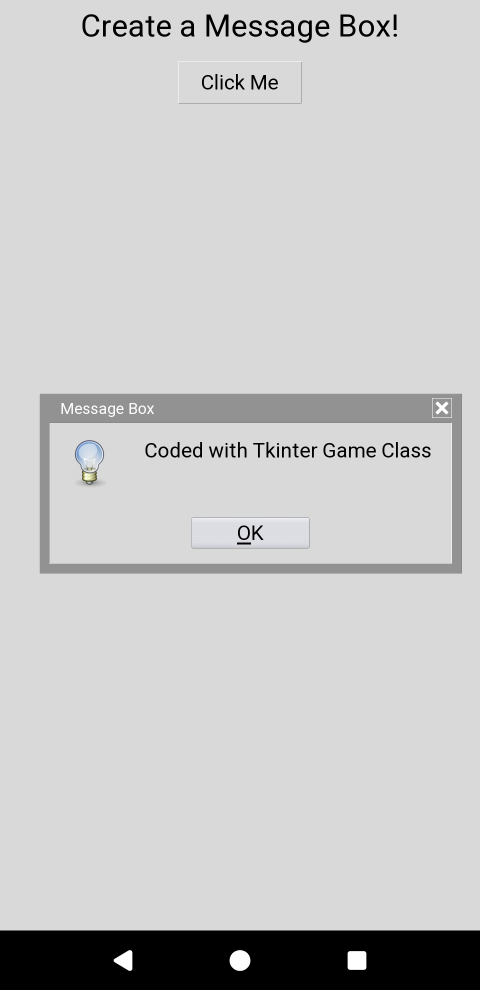
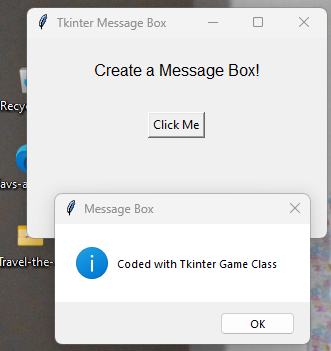
In this Tkinter tutorial we learn how to create a simple dialog box, add the text we want, and implment an on click function to action the code and populate the dialog.All code for this tutorial is at the Example Code section on this page. At Tkinter Game Shot, you can a screenshot of the game screen. Some tutorials also have a short explanatory video, if so, a link is available to click; also at the Tkinter Game Shot.
FYI: In addition to running your code in Python 3.13 REPL, on your Windows computer, the code from this game dev tutorial can be RUN on your Android device(phone, tablet), with Pydroid3(free version), a mobile app; Pydroid3 is an IDE and Python interpreter. Another mobile app, ACode(free version) has a built in Linux terminal(Alpine).
To Note: ACode does not RUN a graphical interface like Pydroid3 does. Pydroid3 and ACode also have built in code editors you can use to write, edit, and save Python Tkinter code. These are both available to download and install on your Android phone from Google Play store.
Coding Tkinter: Use a Code Editor
To write our game code file, we are going to use a code editor. Notepad is a Free code editor, which is available to use on a Windows laptop or computer. If it isn't already available as an app on your computer, you can download it from the Microsoft store. From your Start menu on your computer just click the icon for Microsoft store. From there, you can browse or do a search for the app you want. Notepad is a basic code editor, and we can paste or write our Python Tkinter code into the editor, and save the file as, example: a mygame.py, py file type. If you prefer to use another coding editor that is fine also.Coding Tkinter: How to Create Your Game File
To write and then save the game file on my Windows laptop, I use Notepad, which is the free Windows code editor. And, on my Android cell phone, I use Pydroid3's built in code editor(also free to use), and also, ACode(free Android app) has built in code editor. ACode is especially good if you have to reformat or fix code error syntax. Your file must be saved in .py format; example, mygame.py, a .py file type.How To Load The Game File
There are several ways to get your code running. For laptop(any windows computer), just call the code. First, get the call code; its' the three lines(commented call code) included at the Example code section with the game's code. Remove the comment symbol #, then copy the call code lines, and paste them into the Python 3.13 REPL, at the >>> prompt. Then, click enter key twice on your keyboard to RUN the call code.Name Your Files and Folders. You can name your py files and folders as you like. I like to create a new folder for each game i create, and then place the py file in that folder.
Rename the example call code file and folder name.
In the call code example: Just change the folder and file name to match those on your computer.
Run the Call Code
Simply paste the lines into the REPL at the >>> prompt, tap the 'enter' button twice, and the game window populates. To rerun same code, tap up arrow on your keyboard, and tap enter again. Note: you must have clicked out(tap x) of the game window, to rerun the code this way. You can also paste the codeset(all the code) into the REPL, but this is not recommended, unless it is just a few lines, as large codesets can be problematic, especially if you get 'run code errors'.
For Cell Phone with Pydroid3: 2 Ways to Run the Code, Paste the codeset into the editor(white screen), and tap the RUN icon. A game screen will populate, and run your game. Or, you can save the 'name-of-file.py' file to a folder named Pydroid3; then, use the folder icon at top of Pydroid3 editor to open that file. File loads the code into the editor(white screen), then, tap the RUN icon to run the code.
Keep Py File and Images Together
With Android cell phones, you can run, example: mygame.py file to play the game. So these file types can be opened from any folder on your phone. I created a folder named Pydroid3, to easily know where the files go.
Just remember to keep the game images in the same folder as the mygame.py py file. Open Pydroid3 app, select the folder icon at top of white screen editor, goto your files, select the py file; it loads into Pydroid3. Just tap RUN icon at bottom of screen, to RUN your game code.
Create ShortCut
To organize your py files, and games, shortcuts can be created from the game file. Any file(link) can be added and become a shortcut which gets placed on the home screen, like an app icon. You can also customize the icon.
To open the tkinter game, you simply tap on the 'shortcut' link you created on the home screen, and then Pydroid3 app opens, and loads that link, and plays the tkinter game.
Shortcut apps are free to download from Google Play Store. Shortcut Maker is a popular one, that allows you to customize the shortcut's icon.
Tkinter Game Shot from Android Cell Phone
Tkinter Game Shot from Laptop Windows
Code For This Tutorial
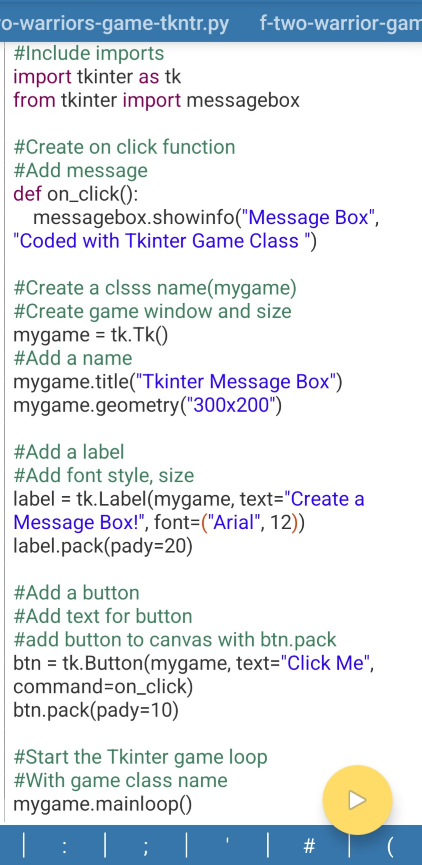
This next image shows the code for this tutorial as it was added(file opened) into the Pydroid3 coding editor. With Pydroid3, you can open your py file from any folder on your Android cell phone. Just use the folder icon in Pydroid3's editor(at top of editor - shown in this image).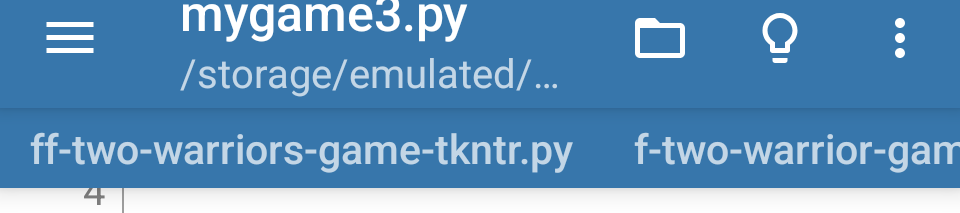
Once it opens in the editor, just click the round icon with the triangle at bottom of the editor to RUN your code.
Code Pasted in Pydroid3 Code Editor
To RUN this same code in my Windows laptop, I used the call code(copy lines at Example Code), and pasted it at the prompt, >>>, in Pydroid 3.13 app on my laptop.
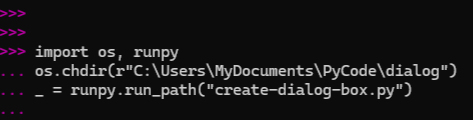
Then tap the Enter button twice on your keyboard to run the code. Because this is a rather small codeset, you can also paste the code into the >>> prompt. Either works fine.
Functions and Methods
This code includes a 'click function' for the message dialog, and the message itself is added with a 'title' and, a 'label'. Then we must include a button, and attach the button to the canvas. Then we simply call the game class name to start the game. When the button is clicked the message dialog box displays with the message, 'Coded With Tkinter Game Class'. You can customize the message and its' length.The code has been commented at each section so its' easy to understand. The call code is also included to paste at the >>> prompt in Python 3.13 on your computer or laptop.
Run Time Error Messages
When you RUN your code in Python3.13(laptop), or Pydroid3(Android cell phone), you will eventually get errors. When you RUN the code, an error message will display and says what line the error is on, and a message to help your decode the error. Syntax errors are common, being that your lines of code or a certain line is not properly aligned. ACode free Android app is good for syntax errors, as it has built in, shadow lines, to help you line the code properly. All code in our tutorials has been RUN without issue on cell phone(Pydroid3 app), and laptop(Python 3.13), so your code is error free. For more on errors, do read our introduction article at Get Coding with TkinterSummary
In this tutorial, we learned how to implement a simple message dialog box, and add the text we wanted. This can be included in your games and used for a variety of interactions.
EXAMPLE CODE - Code For This Tutorial.
JUST copy and paste this code.
JUST copy and paste this code.