
Next Tutorial
How To Implement a 'Frame Layout'
Prev Tutorial View All Tutorials
Meet Singles, Canada, USA, Europe
Because the images we added exceed the width of the physical screen; the 'horizontal scroll' allows the images to be scrolled to the right of the display's physical parameter; and then you can scroll left also.

For this tutorial: The Code For the Horizontal Scroll View
To add a horizontal scroll view to your android app you need to add the horizontal scroll view code as shown in this image.

FOR THIS TUTORIAL
The Code For the Images
For an android horizontal scroll view, you add images to the layout file code in the same manner as if you were just adding an image.
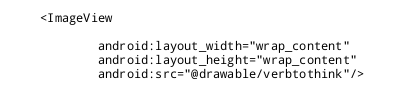
Use:
android:layout_width:="wrap_content", and android:layout_height:="wrap_content", and add:
android:src="@drawable/verbtothink".
All images are placed in the res/drawable-hdpi folder, you don't need to code the .png, because it is in the drawable folder the android system knows it is an image. Although we are using the same image several times in this scrollview app, we need only add it one time to the res/drawable-hdpi folder.
The Code For the App Icon
Coding for the App icon is placed in the manifest file as shown in this image.
The App icon image is placed in the drawable-hdpi folder; and coded in the manifest file as: android:icon="@drawable/yomu"


A label(text) can be added with the App Icon and it is placed next to the App Icon at top of screen display.
To code the label we use the android:label="@string/app_name", which is coded in the manifest file, in the application code. The actual text you use is placed in the strings.xml file, which is at res/values/strings.xml, and is coded as shown in this image. For this app our label text reads: Japanese Verbs.


Coding Tips - FYI
android:layout_marginLeft="5dp"
You can change this as you like for the spacing. For our tutorial app: Japanese, we added this code to some of the images.
Additional reading at Android Developer Website on 'horizontal scroll view'
....horizontal scroll view attributes
How To Implement a 'Frame Layout'
Prev Tutorial View All Tutorials
Meet Singles, Canada, USA, Europe
HORIZONTAL SCROLLVIEW
If you are not familiar with creating a simple app GoTo our Tutorial How to create a simple App in Android for tablets. Just name it "Japanese", if you are following along with this tutorial.What the App 'Japanese' Will Look Like
Once you add the code and images, your app should look similar to this one.Because the images we added exceed the width of the physical screen; the 'horizontal scroll' allows the images to be scrolled to the right of the display's physical parameter; and then you can scroll left also.
For this tutorial: The Code For the Horizontal Scroll View
To add a horizontal scroll view to your android app you need to add the horizontal scroll view code as shown in this image.
FOR THIS TUTORIAL
The Code For the Images
For an android horizontal scroll view, you add images to the layout file code in the same manner as if you were just adding an image.
Use:
android:layout_width:="wrap_content", and android:layout_height:="wrap_content", and add:
android:src="@drawable/verbtothink".
All images are placed in the res/drawable-hdpi folder, you don't need to code the .png, because it is in the drawable folder the android system knows it is an image. Although we are using the same image several times in this scrollview app, we need only add it one time to the res/drawable-hdpi folder.
The Code For the App Icon
Coding for the App icon is placed in the manifest file as shown in this image.
The App icon image is placed in the drawable-hdpi folder; and coded in the manifest file as: android:icon="@drawable/yomu"
A label(text) can be added with the App Icon and it is placed next to the App Icon at top of screen display.
To code the label we use the android:label="@string/app_name", which is coded in the manifest file, in the application code. The actual text you use is placed in the strings.xml file, which is at res/values/strings.xml, and is coded as shown in this image. For this app our label text reads: Japanese Verbs.
Coding Tips - FYI
Horizontal Scroll View
By default the images are placed next to each other. If you want space between each image you can do so by using this code:android:layout_marginLeft="5dp"
You can change this as you like for the spacing. For our tutorial app: Japanese, we added this code to some of the images.
Additional reading at Android Developer Website on 'horizontal scroll view'
....horizontal scroll view attributes
EXAMPLE CODE; Code For This Tutorial
This is the code for this app 'Japanese ' THE - Horizontal Scroll View tablet tutorial; so you can just copy and paste it into your layout file: main.xml
Also, code your manifest file to include the app icon name as shown in the image on this page,'android:icon="drawable/yomu' and code your strings.xml file to say 'Japanese Verbs';'string name='app_name Japanese Verbs, and finally,
SAVE, the two images shown in the Example Code to your tablet, then copy and paste them into your AppProjects/Japanese App at res/drawable-hdpi folder. Use your tablet`s file manager to paste the files into the apps drawable folder. You cannot paste them directly from within the AIDE editor.
TO COMPILE AND RUN YOUR APP:
App Name is 'Japanese' - located at AppProjects/Japanese in AIDE, open the AIDE app, then open App Projects, THEN select the 'Japanese', app from your files hierachy; then click on a file from the app, like strings.xml Make sure at top of page, the app name Japanese is there next to AppProjects like so: AppProjects/Japanese, then you know you have the proper App. Once a file is in the editor, you can save it, then RUN your APP.
Make sure you SAVED EACH PAGE, before you RUN your code. SAVE, RUN, INSTALL, OPEN, your Japanese App. Once it has been installed on your tablet, you can open it Simply by Clicking on the App Icon, YOMU, from the apps directory on your tablet. Just look for the YOMU icon, as shown in this tutorial.
If you make further changes to this Japanese App, you need to SAVE, RUN, UPDATE, OPEN the app.

This is the code for this app 'Japanese ' THE - Horizontal Scroll View tablet tutorial; so you can just copy and paste it into your layout file: main.xml
Also, code your manifest file to include the app icon name as shown in the image on this page,'android:icon="drawable/yomu' and code your strings.xml file to say 'Japanese Verbs';'string name='app_name Japanese Verbs, and finally,
SAVE, the two images shown in the Example Code to your tablet, then copy and paste them into your AppProjects/Japanese App at res/drawable-hdpi folder. Use your tablet`s file manager to paste the files into the apps drawable folder. You cannot paste them directly from within the AIDE editor.
TO COMPILE AND RUN YOUR APP:
App Name is 'Japanese' - located at AppProjects/Japanese in AIDE, open the AIDE app, then open App Projects, THEN select the 'Japanese', app from your files hierachy; then click on a file from the app, like strings.xml Make sure at top of page, the app name Japanese is there next to AppProjects like so: AppProjects/Japanese, then you know you have the proper App. Once a file is in the editor, you can save it, then RUN your APP.
Make sure you SAVED EACH PAGE, before you RUN your code. SAVE, RUN, INSTALL, OPEN, your Japanese App. Once it has been installed on your tablet, you can open it Simply by Clicking on the App Icon, YOMU, from the apps directory on your tablet. Just look for the YOMU icon, as shown in this tutorial.
If you make further changes to this Japanese App, you need to SAVE, RUN, UPDATE, OPEN the app.
This free script provided by
JavaScript
Kit
AIDE for creating Android Apps on your tablet or cell phone(android).
Free and Paid.
GoTo Aide
ANDROID STUDIO - for creating Android Apps on your desktop computer.
Free to Install and Use
Learn more - Android Studio
The Java XML files we code(example codes) and the Android Apps we create in our Free Tutorials are compatible with Android Studio and AIDE. Just choose Java XML as your Programming Language.
You May Like:
Make Sushi Rolls Taste World Wines Flavours and Aromas